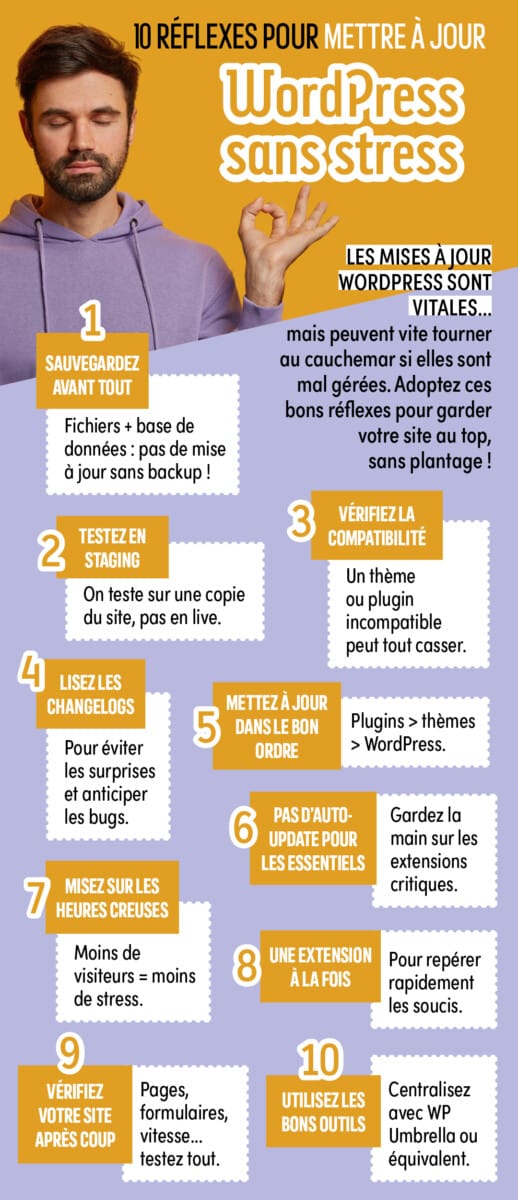
WordPress updates are essential: they correct security flaws, improve performance and ensure compatibility with plugins/themes. But if they're not properly prepared, they can also lead to errors, slowness... or an unavailable site. Here are 10 simple reflexes to help you update your site without unpleasant surprises.

1. Back up first
Files + database no update without complete backup.
You can also a restoration test (even on a small site) or at least check that the backup contains :
- the database
wp-content(themes, plugins, uploads)- the file
wp-config.php
2. Test in staging, not in production
The golden rule : we test on a copy, not on the online site.
Staging allows you to detect :
- PHP errors/white pages
- plugin incompatibilities
- layout issues (theme)
3. Check compatibility (WordPress/PHP/plugins)
Before clicking on «Update», check :
- the targeted WordPress version
- the PHP version of the server
- abandoned« plugins/themes (not updated for a long time)
👉 A non-compatible plugin can break the admin, a form, or the WooCommerce checkout.
4. Read the changelogs
Release notes help to anticipate :
- major changes
- impairment losses (retired functions)
- WooCommerce impacts, editor, API, etc.
🎯 Priority The big components: WordPress core, WooCommerce, cache plug-in, security plug-in and the builder (Elementor/Divi...).
5. Update in the right order
Recommended order (safest in most cases) :
- Plugins
- Themes
- WordPress (core)
Why? Because many plugins are being updated to become compatible with the new version of WordPress.
6. Avoid auto-update for essential elements
Automatic updates are practical... but risky on :
- WooCommerce
- cache plugins
- security plugins
- builders
- complex issues
The right compromise: auto-update for small, simple plugins, manual validation for the essentials.
7. Update at off-peak times
Less traffic = less impact in the event of a problem.
For an e-commerce or high-traffic site: inform the team/customer and plan a short intervention window.
8. One extension at a time
Updating «all at once» complicates the diagnosis.
By making one by one, If a bug appears, you know immediately who is responsible.
Tip: start with the “secondary” plugins and finish with the most sensitive ones.
9. Check your site afterwards
After the update, check at least :
- home + 2-3 key pages
- menu + search
- forms (contact, quotation, newsletter)
- login / member area
- basket/payment if e-commerce
- performance (loading time)
- errors in the console (F12) if complex front
10. Use the right tools
A centralised monitoring/update tool (e.g. WP Umbrella or equivalent) can provide :
- monitoring (uptime)
- multisite management
- update alerts
- reporting
- error tracking
👉 Ideal for managing multiple customer sites and reducing the risk of «forgotten updates».
A little extra: the «plan B» that saves the day
Before any major update, make sure you have :
- the most recent backup
- FTP/SFTP access + database
- a way to deactivate a «breaker» plug-in (rename the plug-in folder)