Keeping Windows workstations up to date is essential for protecting the IT system against cyber threats, ensuring compliance and maintaining the stability of work environments. A well-organised update strategy helps to minimise risks whilst reducing the impact on users.

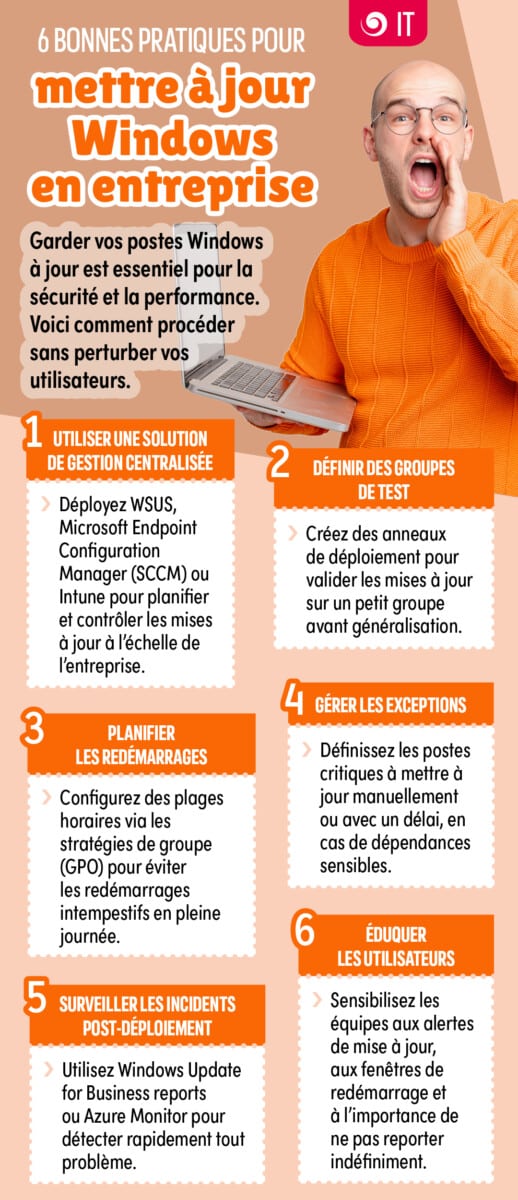
1. Use a centralised management solution
Manually managing updates quickly becomes complex as the IT infrastructure grows. It is recommended to use centralised management tools such as Windows Server Update Services (WSUS), Microsoft Endpoint Configuration Manager (SCCM) or Microsoft Intune.
These solutions enable you to:
- monitor the updates that have been rolled out
- plan the installations
- monitor the compliance status of workstations
- generate deployment reports
This approach provides a clearer overview of the entire fleet and reduces the risk of items being overlooked or configured inconsistently.
2. Define test groups
Deploying an update to all workstations immediately may cause disruption if it contains a fault or is incompatible with certain business applications.
Best practice is to create deployment rings :
- a pilot group comprising a few representative users
- an intermediate group
- the rest of the IT equipment
This method makes it possible to quickly identify any potential problems before they become widespread and to minimise the impact on the company’s operations.
3. Schedule restarts
Some Windows updates require a restart to be applied correctly. An unexpected restart can disrupt staff’s work and cause frustration.
To avoid these situations:
- set suitable time slots
- Use Group Policy Objects (GPOs) or Intune to manage restarts
- allow users a reasonable amount of time to save their work
Careful planning improves acceptance of updates whilst ensuring they are actually installed.
4. Handling exceptions
Certain pieces of equipment require special attention: critical servers, industrial workstations, production equipment or applications that are sensitive to system changes.
In these specific cases:
- introduce additional deployment deadlines; ;
- carry out thorough tests before installation; ;
- Document the procedures for manual updates where necessary.
Exception handling helps to ensure business continuity whilst maintaining an adequate level of security.
5. Monitor post-deployment incidents
The work doesn’t stop once the updates have been installed. It is essential to monitor for any malfunctions that might arise following deployment.
Tools such as Windows Update for Business Reports, Microsoft Intune, Azure Monitor or third-party monitoring solutions enable:
- identify installation failures
- detect drops in performance
- track incidents reported by users
- check that the fleet complies with regulations
Proactive monitoring facilitates rapid rectification and minimises operational disruption.
6. Educating users
The success of an update strategy also depends on staff engagement. Users need to understand why updates are important and how they fit into the organisation’s security processes.
It is advisable to:
- provide regular updates on the update campaigns
- explain notifications and restart requests
- to raise awareness of the risks associated with systematically postponing updates
- provide simple instructions in the event of a problem
Informed users help to maintain a more secure and reliable IT environment.
/