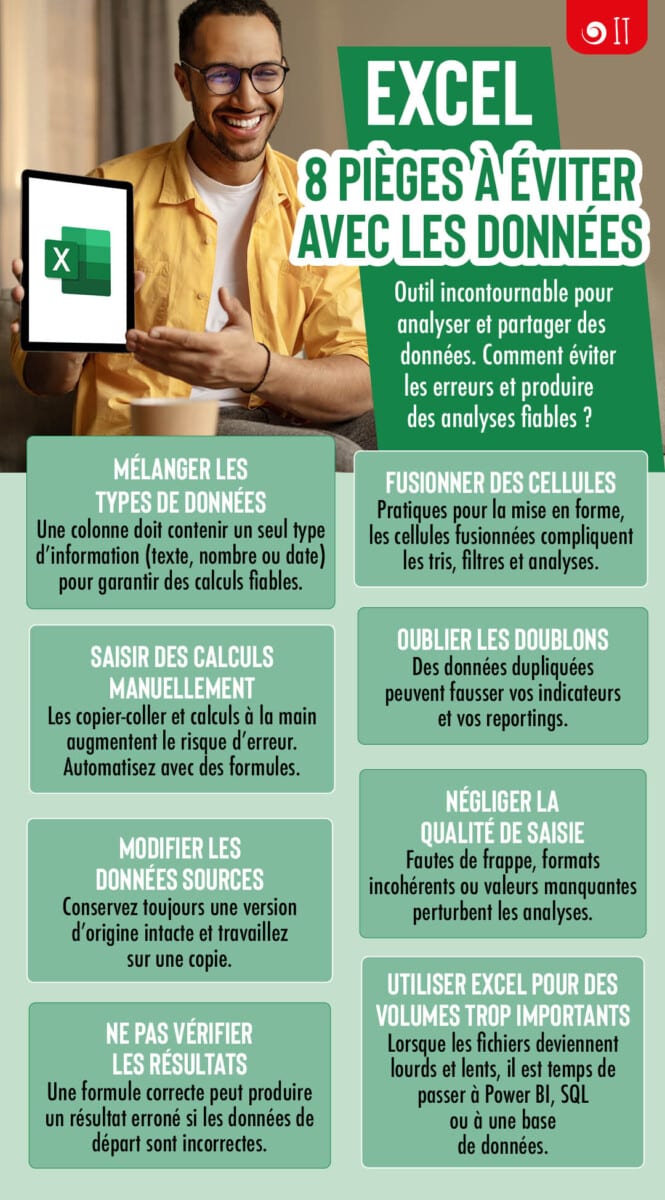
Excel is an essential tool for organising, analysing and sharing data. However, minor errors in structure, data entry or calculations can lead to inaccurate results and inappropriate decisions. Discover eight common pitfalls, their consequences and best practices for avoiding them.

1. Mixing data types
The problem
An Excel column can contain numbers, text, dates or blank cells. When different types are mixed together, Excel may not interpret the information correctly.
This is particularly the case when numbers are stored as text, dates are entered in different formats, or units are added directly to the values.
Example: a sales column
| Product | Amount seized |
|---|---|
| Computer | 1200 |
| Screen | 350 € |
| Keyboard | 80 |
| Mouse | Not specified |
The value 350 € may be interpreted as text, depending on how it was entered. The formula =SUM(B2:B5) there is a risk that this amount may be excluded.
Best practice
- Ensure that the data type is consistent within each column.
- Enter amounts as numbers and apply the currency format in Excel.
- Reserve a specific column for comments, units or statuses.
- Check the type of the imported values before carrying out any analysis.
2. Merging cells
The problem
Merging several cells creates an attractive visual layout, but this can become problematic when done within a data table.
Merged cells can prevent sorting and complicate the use of filters, pivot tables and automated processing.
Example: a poorly structured sales follow-up
| Region | Commercial | Sales |
|---|---|---|
| North | Alice | 2 500 € |
| ↳ fused cell | Karim | 1 800 € |
| South | Sophie | 3 100 € |
| ↳ fused cell | Marc | 2 200 € |
If the «North» and «South» cells are merged vertically, each row no longer has an independent region value.
Best practice
- Never merge cells within the range of data to be analysed.
- Repeat the relevant information on each line.
- Using structured tables in Excel with
Ctrl + T. - Reserve the use of merges for titles or external representations of data.
3. Enter calculations manually
The problem
Performing calculations by hand and then entering the results into Excel increases the risk of errors. A figure calculated manually does not update automatically when a value changes.
Best practice
- Use formulas rather than manually entered results.
- Give preference to cell references over repeated constants.
- Using structured references in Excel spreadsheets.
- Protect cells containing formulas, if necessary.
4. Avoid duplicates
The problem
Duplicates often appear after multiple file imports, copy-and-paste operations or database merges. They can lead to an overestimation of turnover, customers or the number of transactions.
Example: duplicate orders
| Order No. | Customer | Amount |
|---|---|---|
| CMD001 | Martin | 150 € |
| CMD002 | Durand | 300 € |
| CMD002 | Durand | 300 € |
| CMD003 | Leroy | 200 € |
The total calculated without verification comes to €950, whilst the total value of individual orders is €650.
Best practice
- Identify a unique identifier, such as an order number.
- Check for duplicates before merging several files.
- Use the Data → Remove duplicates after verification function.
- It is preferable to flag duplicates rather than delete them immediately.
Detection formula, in D2:
=IF(COUNTIF($A$2:A2, A2) > 1, "Duplicate", "Unique")5. Edit the source data
The problem
Correcting, deleting or replacing data directly in a source file may make it impossible to verify the results and trace the processing carried out.
This becomes particularly problematic when several people are working on the same data.
Example: a sales export
A file contains the gross sales figures for the month. To prepare a report, someone deletes certain rows, replaces missing values and corrects the amounts directly in this file.
It then becomes difficult to distinguish between the data received and the changes made.
Best practice
- Retain the source data without making any changes.
- Create a working copy or a Power Query query.
- Document the cleaning operations.
- Clearly identify the versions of the files.
- Separate the raw data, the prepared data and the results.
6. Neglecting the quality of data entry
The problem
Typing errors, empty cells, unnecessary spaces or different wording for the same piece of information can disrupt the analyses.
For example, «Paris», «PARIS» and «Paris» followed by a space may sometimes be treated as separate groups in certain processing operations.
Example: a customer database
| Customer | City | Status |
|---|---|---|
| Martin | Paris | Assets |
| Durand | Paris with a full stop | asset |
| Leroy | Lyon | Actiff |
| Small | Not specified | Assets |
Best practice
- Use data validation with drop-down lists.
- Define the required fields.
- Standardise the wording.
- Check for missing values.
- Highlight anomalies using conditional formatting.
Formula for removing unnecessary spaces:
=SPACEBAR(B2)Formula for harmonising case:
=UPPER(SPACEBAR(B2))7. Not checking the results
The problem
A formula may be syntactically correct but return an incorrect result because it uses an incomplete range, incorrect data or inappropriate references.
The absence of an Excel error message therefore does not guarantee that a result is reliable.
Example: an incomplete total
| Product | Sales |
|---|---|
| A | 500 € |
| B | 750 € |
| C | 300 € |
| D | 450 € |
A formula =SUM(B2:B4) returns 1,550 €, whereas the correct total is 2,000 €.
Best practice
- Check the ranges used in the formulas.
- Compare the results with an independent control total.
- Check for any unusual variations.
- Use warning indicators.
- Check the source values whenever a discrepancy arises.
Test formula:
=IF(B7=B8,"OK","Discrepancy detected")8. Using Excel for data sets that are too large
The problem
Excel can contain up to 1,048,576 rows per worksheet, but this does not mean that all analyses carried out on large data sets will perform well.
Numerous complex formulas, large pivot tables, external links or excessive formatting can slow down files long before this limit is reached.
Best practice
- Avoid using unnecessary formulas on entire columns.
- Avoid excessive formatting.
- Use Power Query to prepare and transform the data.
- Use the data model or Power Pivot where appropriate.
- Consider using SQL, a database or Power BI for larger-scale, recurring tasks.